# How to: Solving Common Inventory Use Cases with Filters
### Use Case: Identifying recently created reports in production that are unhealthy.
This use case explains how to identify newly created Power BI reports in production that are unhealthy, while excluding non-production and test artifacts. The goal is to quickly surface reports that may require remediation before they impact business users.
#### Why is it important?
Newly created reports typically have had less time for validation and optimization, making them more likely to exhibit early-life issues such as configuration gaps, performance inefficiencies, or incomplete modelling. If left unnoticed, unhealthy production reports can:
* Degrade user experience
* Increase refresh and capacity pressure
* Create downstream reliability issues
* Reduce trust in production reporting
Regularly reviewing newly created unhealthy reports allows teams to intervene early and maintain a stable, high-quality production environment.
#### Who is responsible for it?
This use case is typically owned by:
* BI administrators
* Analytics platform owners
* Data governance or Center of Excellence (CoE) teams
These roles are responsible for monitoring production health, enforcing standards, and ensuring that only high-quality assets are promoted and maintained in production.
#### Steps:
1. Open Control Tower and navigate to the team that contains your production Power BI workspaces.
2. Select **Inventory** to view all assets in scope.
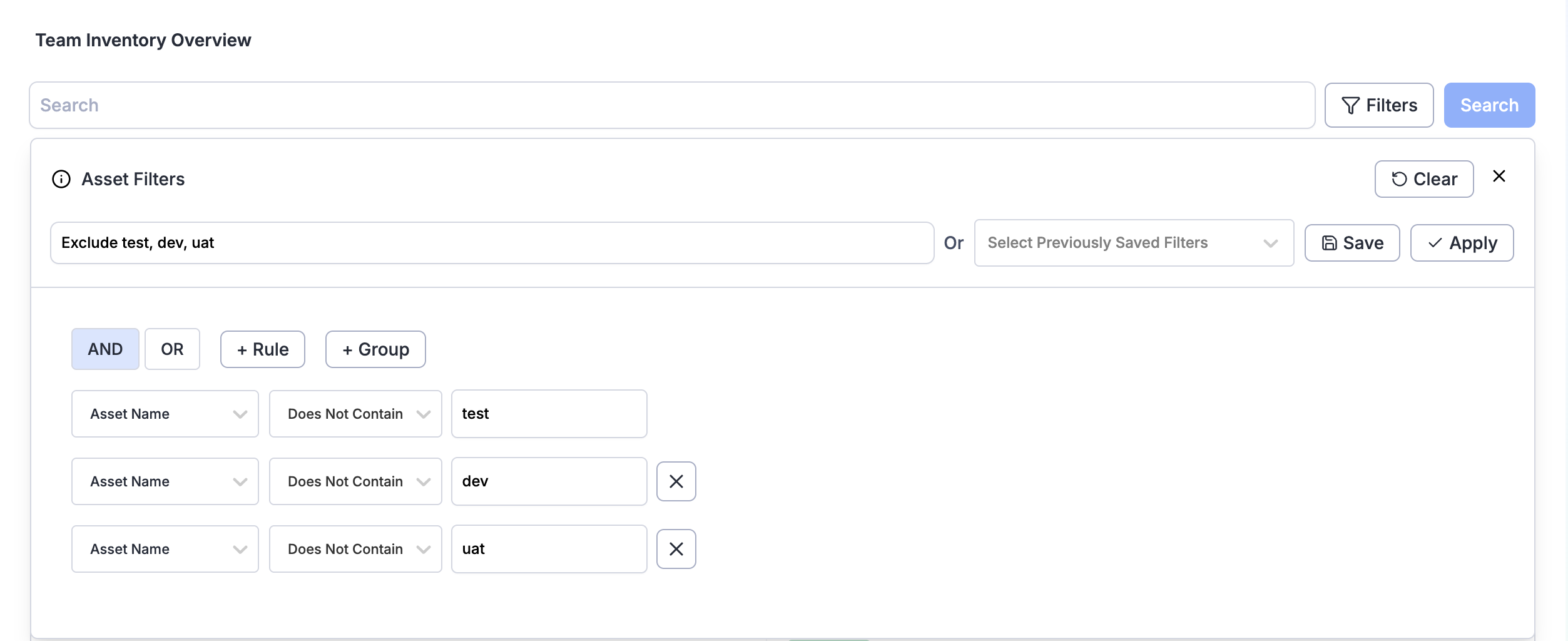
3. Click **Filters** next to the search bar to open the **Asset Filters** panel.
4. Create rules to exclude non-production reports:
1. Add rules to exclude assets whose name contains:
* `test`
* `dev`
* `uat`
2. Group the exclusion rules and use the OR operator so any asset containing one of these terms is excluded. For example, if there are valid production assets that include these character strings (for example, *“evaluation”* contains *“uat”*), create an additional rule or group to explicitly include those assets.
5. Give the filter a descriptive name (for example, *“production reports”*).
6. Click **Save**, then click **Apply** to update the Inventory table.
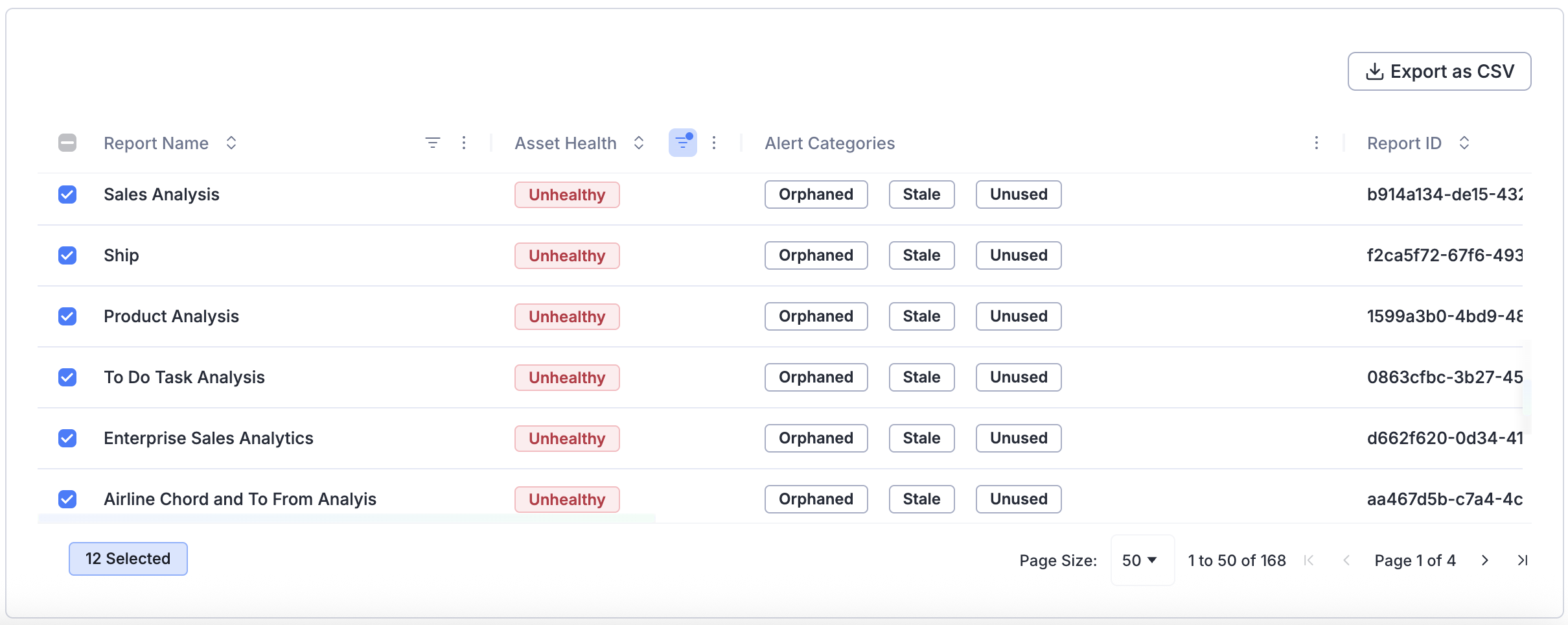
7. Click on the Report tab to find all reports that match the filter.
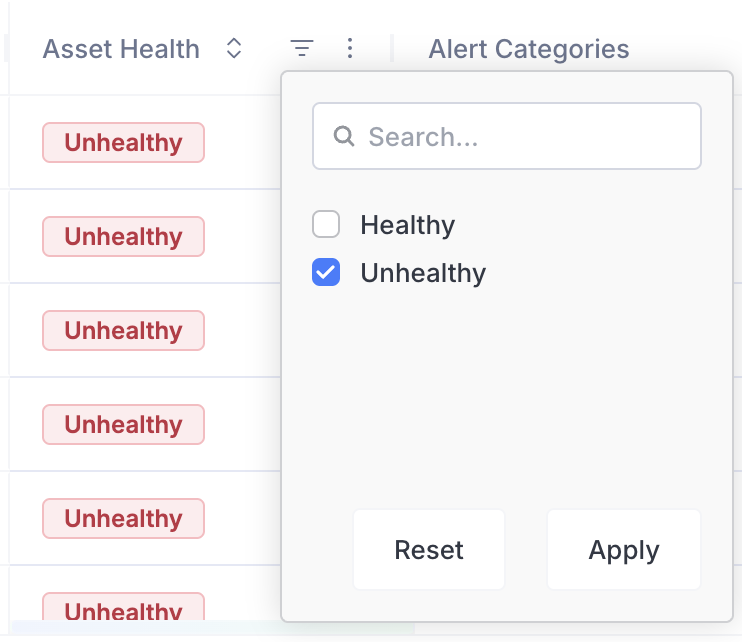
8. Use the attribute filter to filter on **Unhealthy** reports.
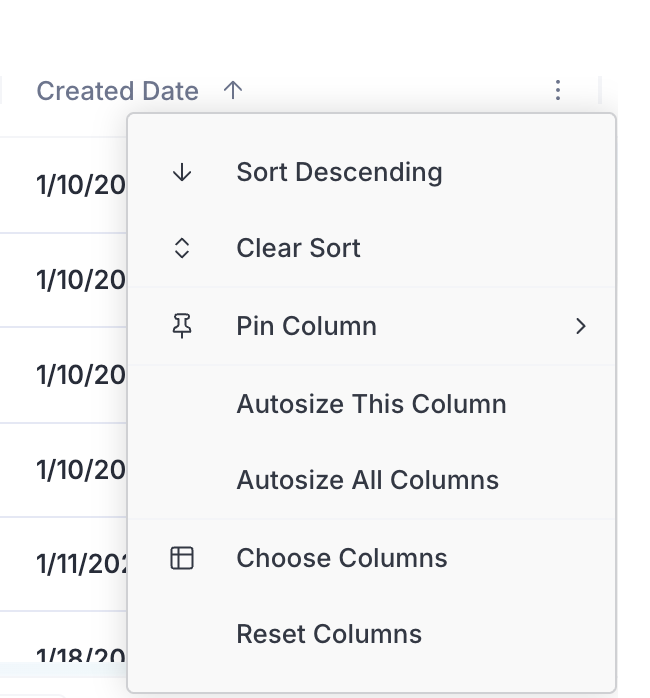
9. Go to the Created Date column and click **Sort Descending**. Optionally, pin this column to the left so it's easier to see.
Once you have the desired inventory list, you can export the results to a CSV file for review, sharing, or follow-up actions.