> For the complete documentation index, see [llms.txt](https://docs.datalogz.io/guides/llms.txt). Markdown versions of documentation pages are available by appending `.md` to page URLs; this page is available as [Markdown](https://docs.datalogz.io/guides/inventory/lineage/understanding-the-lineage-view.md).
# Understanding the Lineage View
Dependency Lineage helps you:
* Understand how assets are connected
* Analyze impact before making changes
* Identify cleanup opportunities
* Improve governance and trust
It turns Inventory from a static catalog into a dynamic system of relationships. Here is how you interpret the lineage view.
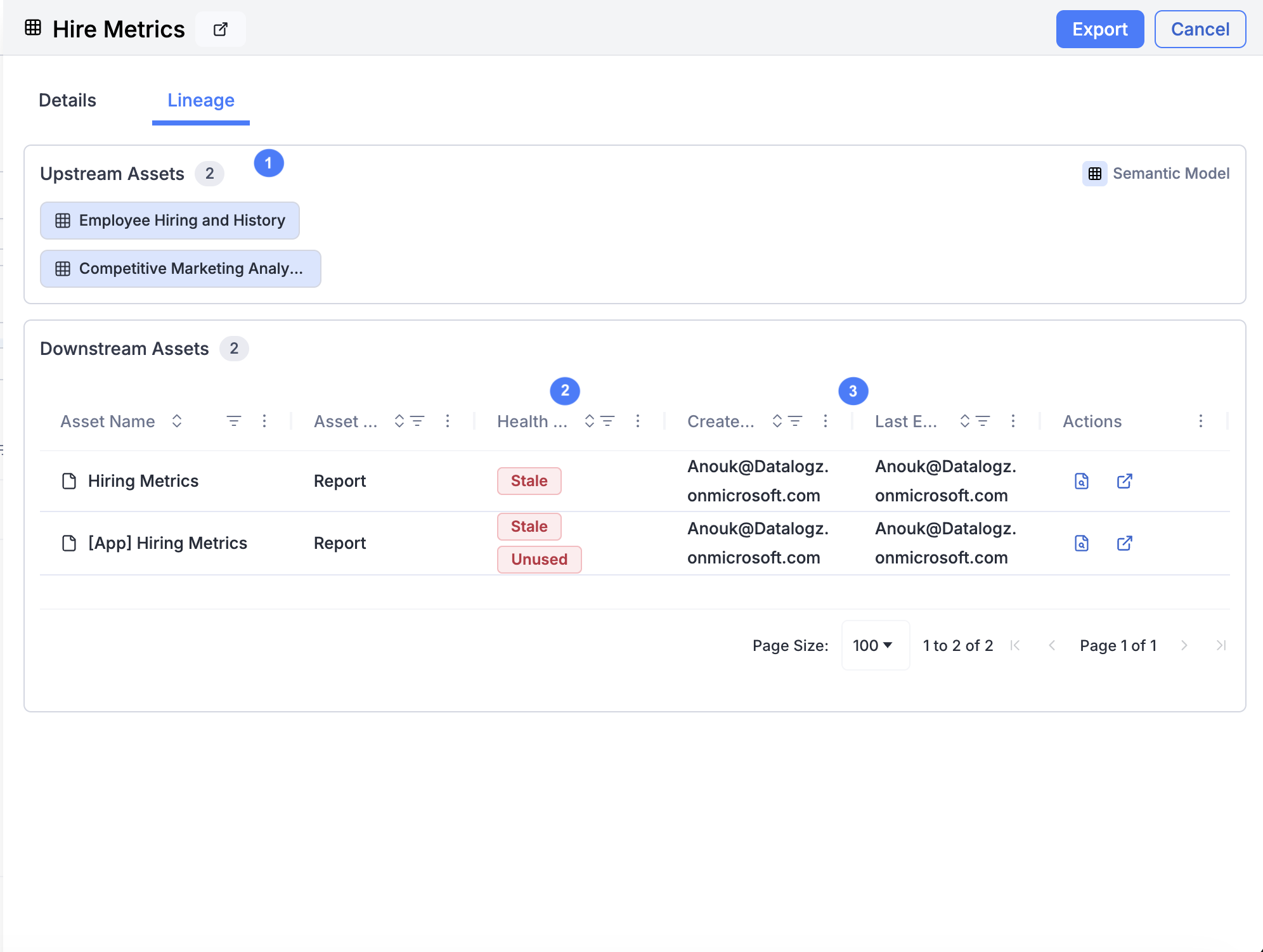
#### Upstream Assets
These are the inputs to your asset.
Examples:
* Semantic models powering a report
* Dataflows feeding a dataset
* Source systems behind a model
If empty:\
“No upstream assets found” means the asset is either:
* A top-level source
* Or lineage is not available from the BI tool
#### Downstream Assets
These are the **outputs** that depend on your asset.
Examples:
* Reports built on a semantic model
* Dashboards using reports
* Other models or derived assets
This section is shown as a table with rich metadata, including:
* Asset name & type
* Owner
* Last modifier
* Health status (e.g., *Stale*, *Unused*)
### Actions
The Actions section allows you to easily:
* Learn more about the dependency in the Control Tower Lineage
* Go to the asset in its source tool, like Power BI or Tableau
### Interpreting Key Signals in Lineage
#### 1. Dependency Count
* The number next to each section shows how many assets are connected
* Helps quickly assess impact size
#### 2. Health Indicators
You’ll see tags like:
* Unused
* Stale
These come from [monitoring](/guides/monitors.md) and help you understand:
* Whether dependencies are still relevant
* Where cleanup opportunities exist
#### 3. Ownership
Each downstream asset includes:
* Owner
* Last modifier
Use this to:
* Contact stakeholders
* Validate whether something can be changed or removed
---
# Agent Instructions
This documentation is published with GitBook. GitBook is the documentation platform designed so that both humans and AI agents can read, navigate, and reason over technical content effectively. Learn more at gitbook.com.
## Querying This Documentation
If you need additional information that is not directly available in this page, you can query the documentation dynamically by asking a question.
Perform an HTTP GET request on the current page URL with the `ask` query parameter, and the optional `goal` query parameter:
```
GET https://docs.datalogz.io/guides/inventory/lineage/understanding-the-lineage-view.md?ask=&goal=
```
`ask` is the immediate question: it should be specific, self-contained, and written in natural language.
`goal` is optional and describes the broader end goal you are ultimately trying to accomplish on behalf of the user. GitBook uses it to tailor the answer towards what is most useful for that goal.
The response will contain a direct answer to the question and relevant excerpts and sources from the documentation.
Use this mechanism when the answer is not explicitly present in the current page, you need clarification or additional context, or you want to retrieve related documentation sections.